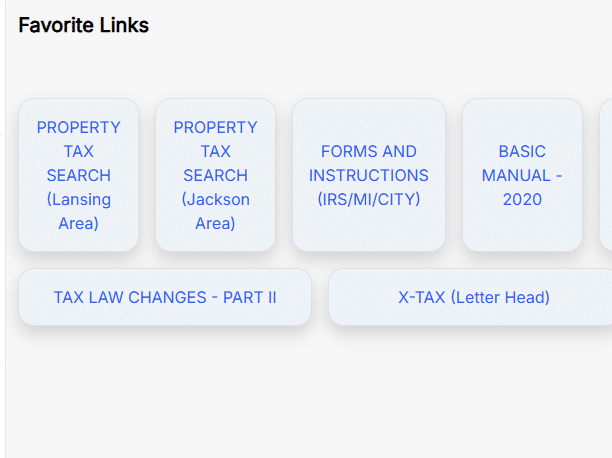
Favorite Links are used to provide quick access to commonly used or important URLs that can help you and your staff when working in client files.
Adding a Favorite Link #
Adding a Favorite Link is done outside of the client file. At the top of your ATOM, there is a Links tab. Clicking this will take you to where you paste URLs that you wish to display in the Favorite Links section of any client file.
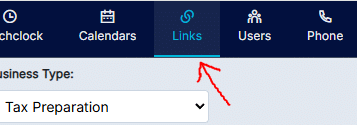
This page will show you all the links that have been added to this section. To add a Favorite Link, click the Add button at the top-right.
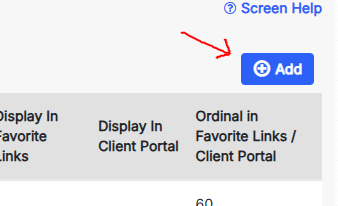
Clicking the Add button will open a new menu where you can add your Favorite Link
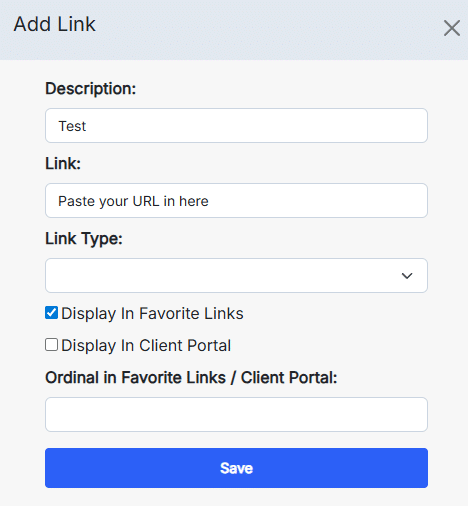
The fields on this menu are:
Description – This will be the display title of the URL.
Link – Use this field paste the URL you wish to link.
Note: Internal Documents for your office can be easily linked for access here because uploads stored in ATOM have a resulting URL once they are saved. *Hover your mouse over the saved document in ATOM, right click, and then save (copy) the location, that location can then be added here as an Additional Link.
Link Type – Pulldown menu to select the link type associated with your Additional Link.
Set up: Additional Link Types, for categorizing, are set in Admin > Category Types > Additional Link Types. Create unlimited types by business type and their internal labels to suit your needs. e.g. Types: Letters, Employee Manuals, State, Federal, Property Taxes Sites – for Business Type Tax Preparation.
Display in Favorite Links – Checking this box will allow the link to display in Favorite Links section in every client file.
Display in Client Portal – Checking this box will allow the link to display in the “Additional Links” section of the Client Portal.
Ordinal in Favorite Links / Client Portal – Open data field to enter the numerical order of the Favorite or Client Portal Links as they will appear in the Favorite Links Section of your Client File (by Business Type) or on your Client Portal.
Note: Best Practice usage would be to create links with large gaps in your ordinals e.g. (10, 20, 30…) so that new links are able to be inserted between the current links (e.g. 11, 12, 13…) without the need to reorder the entire list of links.
Once Links are set up #
Once you have added links to the Favorite Links. There will appear similar to the image below. All what Users have to do is click on the link and a new tab will open displaying the saved URL.