

The Account Information section functions much like a hanging file label. The information within provides detailed context about the client file and the resulting File Information sections that follow. Most Account Information options can also be used in the expanded SEARCH fields in ATOM.
As a best practice, it is beneficial to have all areas of the Account Information section filled out when using ATOM for Tax Preparation. This is not required and can be altered as a requirement in ADMIN > Category Types > Event Status / Office Events > Status – Disable Account Field Requirement Error Check.
Note: Many of the Account Information section menu options tend not to be as useful when working with other multi-status business types in ATOM until you define each area for your own use. For that reason, Payroll and Bookkeeping office event templates have the requirement disabled.
Field Descriptions #
Account Information #

- Year – Fillable field to designate the year associated with the Account file. Tax preparation files should match the Tax Year of filing.
SET UP: Change the default year configuration in ADMIN > Business Type > Default Year (Years to Add to the Current Year). Tax Preparation should be set to -1. - Account Type – Pulldown field to note the Account Type associated with the file. EF Data will flow automatically if left unset for Drake, Crosslink, or TaxWise.
SET UP: Create or edit options in ADMIN > Category Types > Account Types.
Note: Account Types are not tied to EF Data Flow, so descriptive names (e.g., 1040A, 1040C) are allowed. There can be only one Account Type per Account. - Business Type – Selected or default Business Type for the account file.
- User – Pulldown field to designate the Account User for the file.
Note: Always designate a User; this is required for reports like Mailers – Client Export. For tax preparation files, the preparer should be the Account User. - Site – Pulldown field (if applicable) to designate the site for the account file.
Scheduling #
- Difficulty – Pulldown to note the Difficulty associated with the account file.
SET UP: Create or edit in ADMIN > Category Types > Difficulty.
Note: Difficulty can denote the expertise level needed and tie directly to the time it takes to complete a file. - Time – Fillable field to designate the time associated with the Account file.
SET UP: Default Time settings are based on Difficulty options in ADMIN > Category Types > Difficulty.
Note: Time can automatically fill the appointment duration when scheduling new appointments. - Appointment Type – Pulldown to set the Account Appointment Type.
SET UP: Create and edit in ADMIN > Category Types > Appointment Types.
Note: Default Appointment Types display based on the following logic:- Walk-In: Created manually using Add Account Year / Business Type or Add in Search results.
- Appointment Type: If created through a scheduled appointment and checked in by staff or client via Self Check-In Kiosk, the system opens a new account year (if not existing) and defaults to their appointment type.
- Referral – Pulldown field to note how the client was referred.
SET UP: Create or edit Referral Types in ADMIN > Category Types > Referral Types Configuration.
Restrict changes via ADMIN > Core Configuration > Security Configuration – “Block Non-Admin users from modifying the referral type after it has been set.”
Note: Referral Type feeds into the RAF Program and reporting tools for tracking marketing performance. - Retention – Displays the number of years the client has been with the company.
Note: New clients without prior history begin at year 1 unless overwritten.
Account Notes #
- Account Number – Optional open entry for account numbers or other identifiers.
- Mark as Favorite – Displays the file in a Favorites section on the Search page.
- Do Not E-File – Opens a dialog box to note why the file wasn’t electronically filed (e.g., “Mailed Amended Return”).
- Final Year – Opens a dialog box to note why this is the final year for the account.
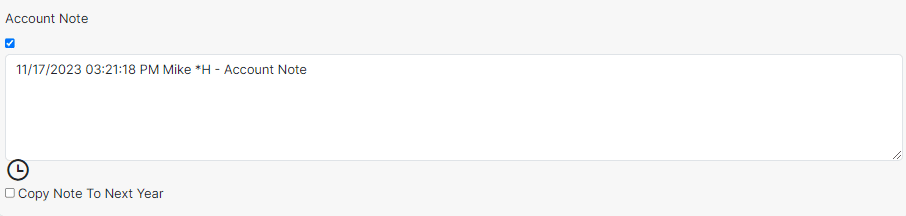
- Account Note – Opens a field for notes that appear only when viewing the Account file.
Note: When enabled, you can select Copy Note To Next Year to carry the note forward.
Account Creation #
- Received By – Pulldown field noting the User who created the account file. The user’s IP address is displayed to the right.
- Received Date – Timestamp showing the date and time the account was created.
- Due Date – Field for the due date associated with the selected Account Type.
SET UP: Configure due dates in ADMIN > Category Types > Account Types.
Actions, Links, and Save #
Actions #
Clicking the Actions button opens additional options:
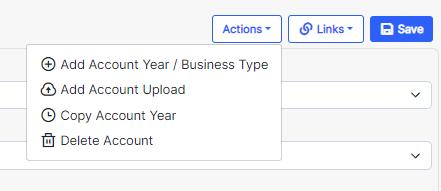
- Add Account Year / Business Type – Launches the side menu to add a new Account Year of the same or a different Business Type.
- Add Account Upload – Opens the quick upload side menu to add a new account upload without leaving the page.
Note: Uploads can also be added under Account Documents. - Copy Account Year – Copies the Account Year to a linked client’s file.
- Delete Account – Deletes the Account Year from the client file.
Note: Deletion is only possible after removing all associated data (open/closed events, transactions, uploads, or notes).
Links #
Clicking the Links button opens the following options:
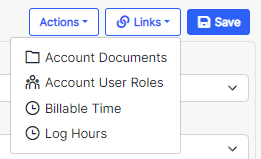
- Account Documents – Opens the Account Year Documents Log to view, organize, move, or upload documents.
- Account User Roles – Opens the interface to assign additional user commission roles and rates.
SET UP 1: Enable in ADMIN > Category Types > Business Types > “Display in Account Information – Additional User Roles.”
SET UP 2: Configure roles and rates in ADMIN > Category Types > Account User Roles.
Note:- Primary commission comes from the User File.
- Reports include:
- Management – Preparer’s Commission Report
- Management – Account User Role Commission Report
- Billable Time – Opens the Billable Time Log to track, import, and export billable hours.
SET UP: Enable in ADMIN > Core Configuration > Users > Security Restrictions & Permissions > Punchclock Permissions > Enable Billable Punchclock. - Log Hours – Launches the Billable Punch Clock to record time entries in real time.
SET UP: Enable Enable Billable Punchclock under the same Punchclock Permissions settings above.
Save #
Click Save to store any changes made in the Account Information section.