

User Personal Information #
This section is the first step in adding employees to your ATOM site so you can store their personal information and create their login. Your office can add employee demographic information, documents, and communication logs here.
All employees using your ATOM Software site should be entered as a User.
Only an ATOM Administrator, meaning a user with Administrative Security Settings, can add a new User.
User Settings and Buttons #
You will see more User setup options after you complete and save the required fields for the User. All additional sections can be found in the upper left side menu.
Side Menu #
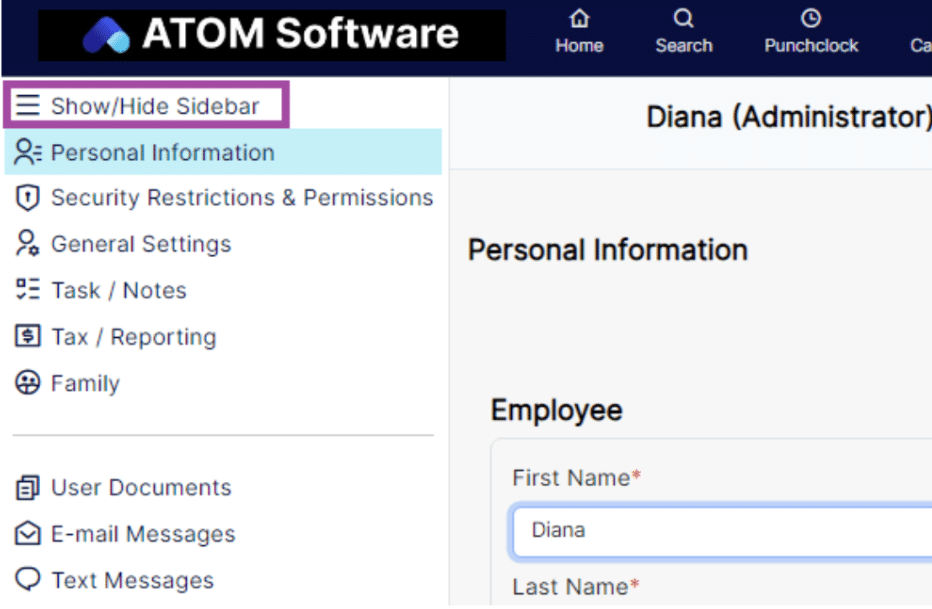
Personal Information #
The Personal Information section will always include these areas:
- Employee
- ATOM Login
- User Defaults
- Address
- Preparer Information
This section contains the information required to save a User in the system.
Note: Required fields are marked with a bold red label and an asterisk.
Action Buttons #
Save #
Use the Save button to save newly entered Personal Information or any changes.
Delete #
The Delete option is only available if the User has never logged in or used your ATOM software site.
Employee #
This section includes demographic information about your employee. User information will be used on ATOM generated Payroll reports. The contact information entered here can also be used for external message delivery.
Employee Fields #
First Name*
Required field. The User’s first name.
MI
The User’s middle initial.
Last Name*
Required field. The User’s last name.
Goes By
The User’s nickname.
Social Security #
The User’s Social Security number. This will flow to the ATOM Report Form W-2 for payroll purposes.
Date of Birth
The User’s birthday in MM/DD/YYYY format.
Gender
Options include Male, Female, or leave blank.
Start Date
The employee’s first day of employment.
Marital Status
Options include Single, Married, Divorced, Widowed, or leave blank.
Home Phone
The employee’s evening or home telephone number.
Work Phone
An optional second employment phone number.
Cell Phone
This works best when it is the User’s personal cell phone number, since it may be used for Assigned Tasks, 2FA, and system text messages.
Note: Text messaging can only be used for offices signed up for the Twilio texting add-on feature.
Office Phone
The User’s main in-office phone number or extension.
Email*
Required field. The User’s email address. This should typically be a personal email address since it may be used for Forgotten Passwords, Assigned Tasks, 2FA, and forwarded System Messages.
Enable System Message Notifications (Email/Twilio)
Check this box if you want ATOM System Messages forwarded to the User’s personal email address or, when enabled, sent by text to the User’s cell phone in addition to the ATOM Message Center.
Address #
This section includes the User’s personal address information, which can also be used on ATOM generated Payroll reports.
Address Fields #
Address
The employee’s street address.
City
The employee’s city.
State/Province/Territory
The employee’s state, province, or territory.
Zip Code/Postal Code
The employee’s ZIP or postal code.
Province
The employee’s province, if needed for mailing purposes.
Country
The employee’s country, if needed for mailing purposes.
State, Province, and Territory selections are configured under:
ADMIN > Core Configuration > States/Provinces/Territories
ATOM Login #
The ATOM Login and Password determine how the User will access your ATOM site.
ATOM Login Fields #
ATOM Username*
Required field. The User name used to log in to your ATOM site. Usernames must be unique, can be up to 25 characters, and are not case sensitive when logging in.
Password*
Required field. The User’s password for logging in to your ATOM site.
The password must:
- Be at least 8 characters long
- Include an uppercase letter
- Include a lowercase letter
- Include a special character or number
- Be no more than 25 alphanumeric characters
Passwords are case sensitive and are not visible after the initial entry for security purposes.
If the User forgets their password, an Administrator can enter a temporary new password. The employee will then be prompted to create a new secure password upon first login.
User Defaults #
User Defaults are settings you can assign to help Users when logging into ATOM, creating client files, and identifying their level of experience.
User Default Fields #
Security Group*
Required field. ATOM Security Levels control each User’s permissions in the software and help limit access to certain functions.
Choose the Security Level based on the employee’s responsibilities in your office and in ATOM.
Permissions for EF Data, Account Documents, and Balance Summary Totals are set under:
ADMIN > Core Configuration > Security Configuration > Security Group Permissions
A User’s Security Group also determines which ATOM Reports are visible to them. Report Permissions are configured under:
ADMIN > Core Configuration > Report Permissions
Security Group Options #
Inactive
The user no longer has access to the software. The User’s name will no longer appear in most drop down menus within the software, other than reports.
For security purposes, the User’s Security Level should be changed to Inactive as soon as employment ends or after tax season for employees who no longer need access to your ATOM site.
Receptionist, Preparer, Senior Preparer
These Users have equal access to the software with no special privileges, except they can delete Tasks and Notes, uploaded documents, and account years. They do not have Office Manager or Administrator privileges.
Office Manager
These Users have the same privileges as the previous group, plus they can:
- Edit, copy, add, or delete information in Availability Schedules, Work Schedules, and the Client File Transaction Information section
- View and edit a User’s Personal and Family Information
- Delete a Contact
Administrator
This User has unlimited access to the entire software application and the ADMIN tab. They can:
- Edit, copy, add, or delete any information in the Punch Clock or Administration pages, including User Tax Information
- View Confidential Uploads, Restricted Client Files, Confidential Tasks and Notes, Confidential Comments, and User Tasks and Notes
- Delete a contact file
Site*
Required field. The User’s primary Site. ATOM will default to this Site for any new Client Contact the User adds to your database or when scheduling a New Client Appointment.
If multiple Sites are available, this default can be manually changed at any time.
Note: When enabled under Security Restrictions, the selected Site can also be used to restrict the User’s access to only their default Site.
Default Business Type*
Required field. The User’s primary Business Type. ATOM will default to this Business Type for any new Client Contact the User adds or any New Client Appointment they schedule.
This can be manually changed later if needed.
Default Account Type*
Required field. The User’s primary Account Type. ATOM will default to this Account Type for any new Client Contact the User adds.
Experience*
Required field. This ranking helps when assigning responsibilities and scheduling appointments based on the employee’s experience level and tax return difficulty.
This correlates to the Difficulty rating configured under:
ADMIN > Category Types > Difficulty
Note: ATOM includes preset Difficulty options using a starred ranking system. One star represents the least experienced employee, and five stars represents the most experienced.
Individual/Business*
Required field. This indicates the type of file the User most commonly works with.
ATOM will default to this file type for any new Client Contact file the User adds to your database.
For example, a User who mostly works with individual tax returns should default to Individual. A User who works in Bookkeeping or Payroll and prepares 1020s and 1065s should default to Business.
Preparer Information #
The Preparer Information section is used to store information about the employee’s credentials as a Tax Preparer. This section may not apply to all employees.
Preparer Information Fields #
Preparer #
The User’s Preparer Number used in your Tax Software, if applicable.
PTIN
The User’s registered Preparer Tax Identification Number for filing.
CPE
This area can be used to track the User’s accumulated and required CPE hours.
RBIN
The User’s Republic Bank Identification Number, if applicable. This is used for those who file bank products with client tax returns.
MISC
An open entry area to track any other preparer related information your office wants to store, such as IRS, Direct Deposit, or EITC certificate requirements.
Last Modified On #
The name of the User who last modified the employee’s file will appear here, along with a timestamp showing the most recent change made to the User file.
If you want, I can also turn this into a more polished WordPress-ready version with bold labels, tighter spacing, and no bullet points so it pastes in even cleaner.