

With VoIP, every client file includes a Call Log used to track the client’s calls to your software. Use this section to gather and review call data for each client.
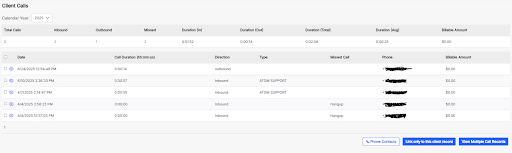
Calendar Year and Buttons #
Calendar Year appears at the top of the page. Buttons appear at the bottom of the page.
- Calendar Year — Dropdown to select the year you want to view. Calls are grouped by calendar year.
- Phone Contacts — Opens a side menu of all contacts in the client file including their Cell Phone, Phone 1, and Phone 2. If a number exists in any of those fields, a call link icon appears that populates the Voice Agent with that number.
- Link only to this client record — After selecting a call record, links the call only to the current client file. Helpful when multiple client files share a phone number.
- View Multiple Call Records — Select multiple calls and view their information together. The View button next to a single call shows only that call’s info, while this button shows the info for all selected calls.
Field Description #
Column Headers #
- Total Calls — Total number of calls. Click to display the list below.
- Inbound — Number of inbound calls. Click to display them.
- Outbound — Number of outbound calls. Click to display them.
- Missed — Number of missed calls. Click to display them.
- Note: Missed calls are calls no one picked up. Calls that occur when all users are Unavailable are included. Incoming calls that hang up before connecting are also counted.
- Duration In — Total duration of inbound calls.
- Duration Out — Total duration of outbound calls.
- Duration Total — Total duration of all calls.
- Duration Avg — Average duration of all calls.
- Billable Amount — Total billable amount for all calls.
- Note: Configure the billable amount in Users > User File > Tax and Reporting > Billing Rate communications.
Call Information #
- Select — Use the selection box to choose calls and then use Link only to this client record or View Multiple Call Records.
- View — Shows details for the call including the User or phone number attached to the call, call duration, date and time, billable rate, direction, and type.
- Note: Type is used only if you have call options set up in Twilio Studio. Contact ATOM Support if you want to configure call options.
- Date — Date and time of the call.
- Call Duration hh:mm:ss — Duration of the call in hours minutes seconds.
- Direction — Inbound or Outbound.
- Type — If Twilio Studio call options are configured, shows the option selected by the caller on an incoming call.
- Missed Call — Populates only when a call was missed or if an inbound caller hung up before connecting with a user.
- Phone — Phone number of the call.
- Billable Amount — Billable amount associated with the call.