

The Appointments section is located inside each client’s file.
It is used to keep track of all scheduled appointments that the client has had or has upcoming.
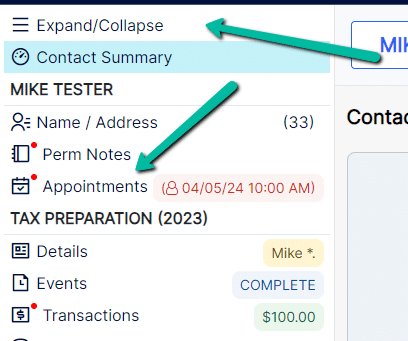
If a client has an upcoming appointment, the appointment date and time will display.
Clicking on Appointments takes you to the client’s Appointments section.
Field Descriptions #

- All Appointments – Checkbox that displays all appointments the client has had.
When unchecked, only appointments scheduled for the current year are shown. - View – Opens the Appointment Calendar and displays the client’s scheduled appointment.
You can make edits directly from the calendar. - Date – The date of the scheduled appointment.
- Start Time – The time the scheduled appointment begins.
- Appt. Notes – Displays any notes that were added when the appointment was scheduled.
- Time – The duration of the appointment.
- Requested User – Displays the user who was specifically requested for the appointment (if applicable).
- Site – The site of the scheduled appointment (only applicable if multiple ATOM sites exist).
- Business Type – Displays the Business Type associated with the scheduled appointment.
- Kept Appt. – Indicates that the client was “checked in” for the appointment.
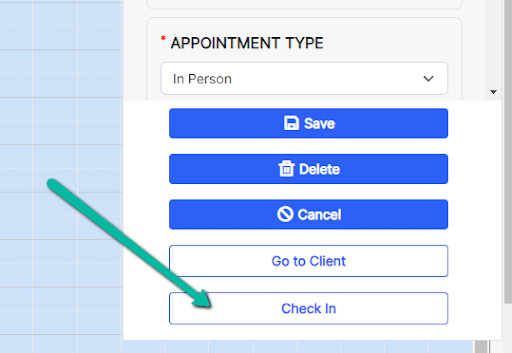
Clicking the appointment on the Appointment Calendar provides the option to check in the client.
This process automatically creates a new Account Year for that Business Type.
- Type – Displays the Appointment Type of the scheduled appointment.
- Schedule – Opens the Appointment Calendar to schedule a new appointment for the client.